
How to Create an Outlet Requisition Using a Template
There are four ways to create an Outlet Requisition:- New in Requisition Center
- From a Template in Requisition Center
- From a Reorder Report in Requisition Center
- Uploaded from the Adaco Mobile software.
- Go to Requisition Center > From Template > Outlet Requisition (as seen in Fig.1)
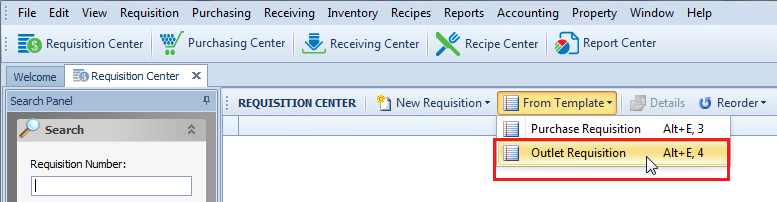
Fig.1 - Selecting Outlet Requisition from the Requisition Center
- In the Outlet Template Selection dialog box, select either My Templates or All Templates to find the correct template
- Select the desired template and Select Template, as per Fig.2
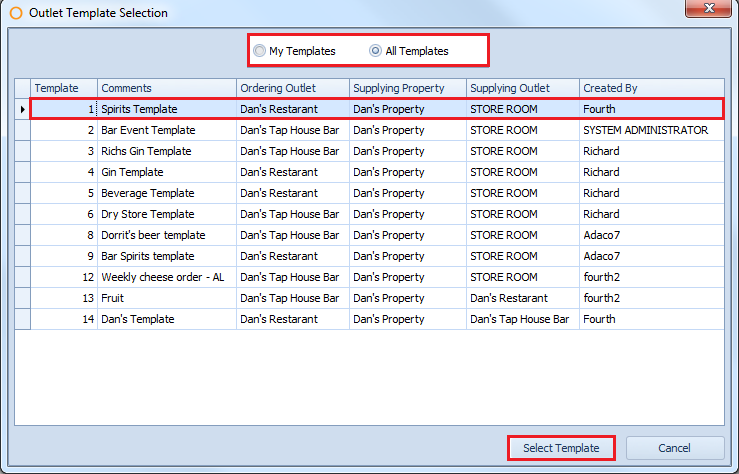
Fig.2 - Selecting the Outlet Template
- In the Need By list, enter the date that the requisition is needed by
- In the Sequence list, select either Supplying Outlet or Ordering Outlet to sort the products by the corresponding outlet's inventory guide sequence, as per Fig.3
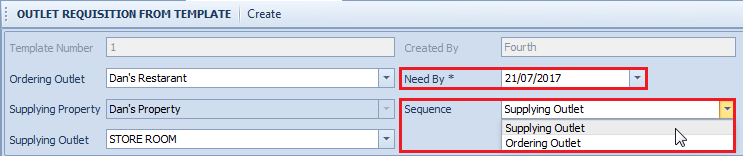
Fig.3 - Selecting the Sequence
- In the Quantity box, type the necessary quantity for each product as needed
- Click Create once all information has been entered, as per Fig.4
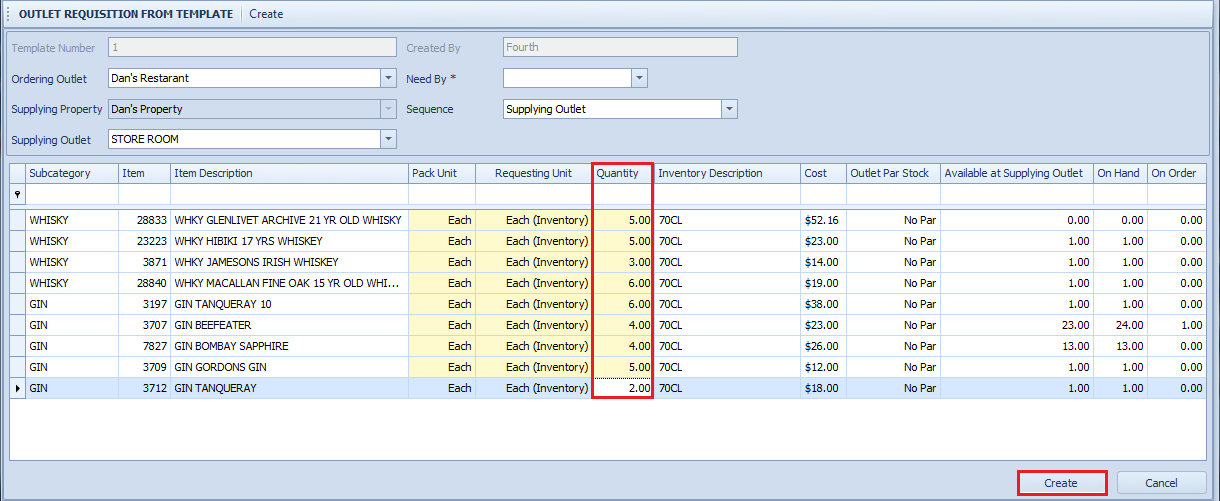
Fig.4 - Entering quantities and Creating Requisition
Once the Outlet Requisition is created it can then be edited, released and so on, like any other requisition in the system.
Comments
Please sign in to leave a comment.