
Overview
You have the ability to change your username and/or password by logging into your HotSchedules account.
- The username must be at least 5 characters long and unique to the system
- The password must be at least 4 characters long, and it can be letters and/or numbers only
You can change this information as often as you like.
Changing Your Username
- Navigate to the Settings tab, then select Personal
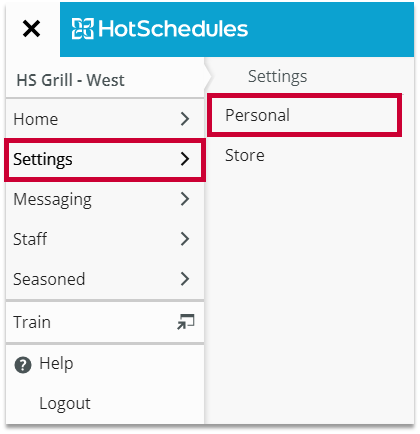
Fig.1 - Navigation
- Select Reset Login & Security
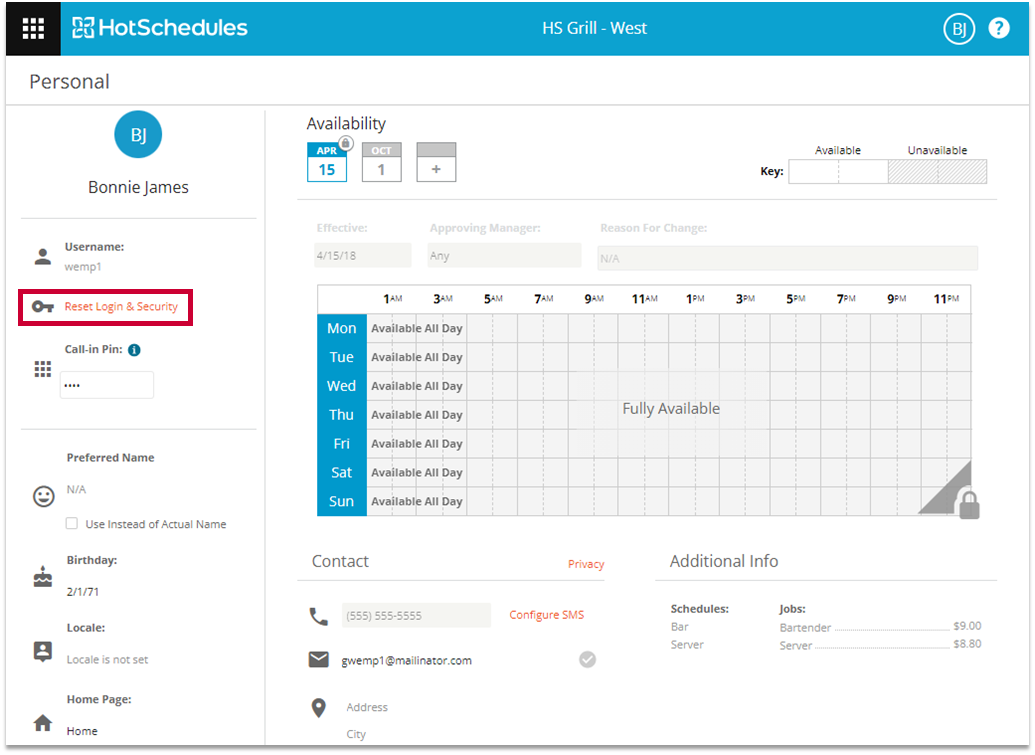
Fig.2 - Reset Login & Security
- A pop-up will window will display, type the new username in the Username field
- Type your password in the Enter Your Current Password field
- Select SAVE CHANGES
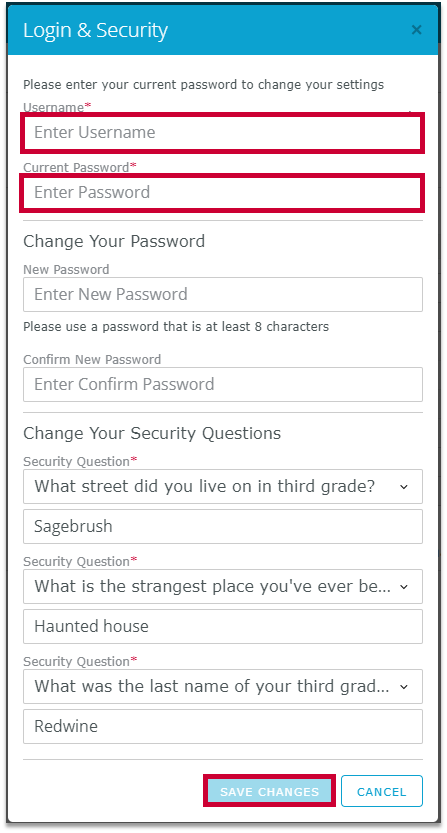
Fig.3 - Reset Login & Security fields
 The username has to be unique in HotSchedules. If you receive an error that states the username already exists, you can try another one.
Changing Your Password:
- Navigate to the Settings tab, then select Personal
Fig.4 - Navigation
- Select Reset Login & Security
Fig.5 - Reset Login & Security
- Type your old password in the Current Password field
- Type your new password in both fields
- New Password
- Confirm New Password
- Select SAVE CHANGES
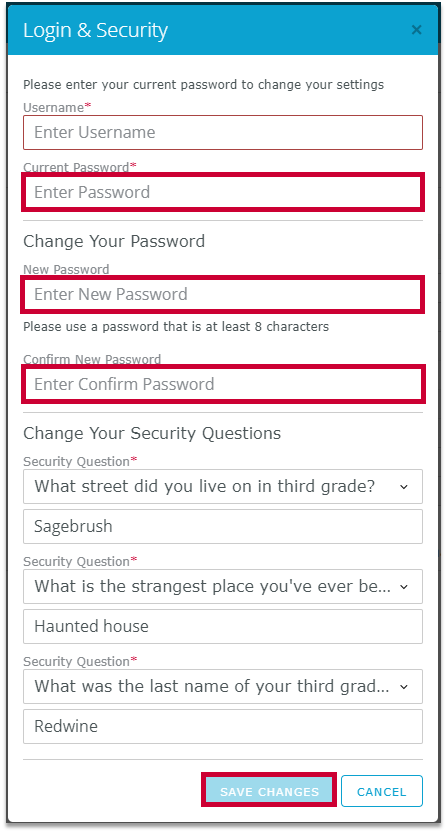
Fig.6 - Reset Login & Security fields
Comments
I'm log out of my hot schedule I'm trying to log in I have my username and I'm trying to remember my set my password I'm trying to restart my password
Hello Dominic Edwards,
Please follow the steps in this article:
Thanks,
Fourth Communities Team
Please sign in to leave a comment.