
Overview
An important aspect of the system is user maintenance and one of the tasks that administrators are required to do is deactivate users when it’s relevant to do so, e.g. if they have left the business.
There are no pre-action requirements, however, the user being deactivated will not have access to the system after deactivation.
This article describes the process of deactivating a user in Inventory (formerly known as R9).
Deactivating a User in Inventory
- Select the Setup tab
- Select Users
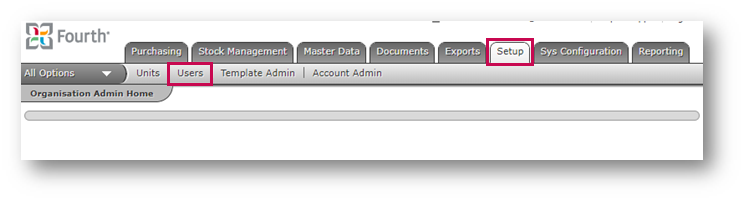
Fig.1 - Users Link
- Search for and select the required User
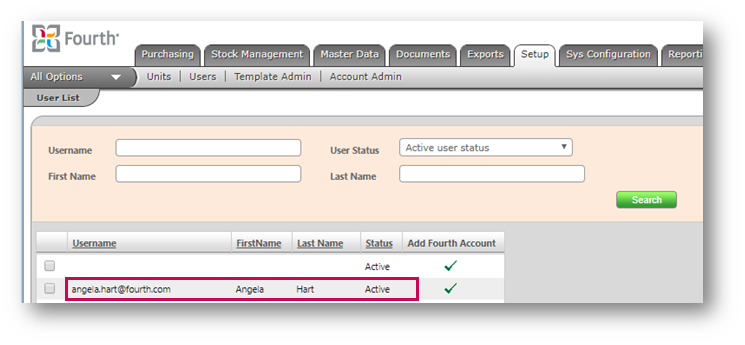
Fig.2 - User List
- Select Deactivate User
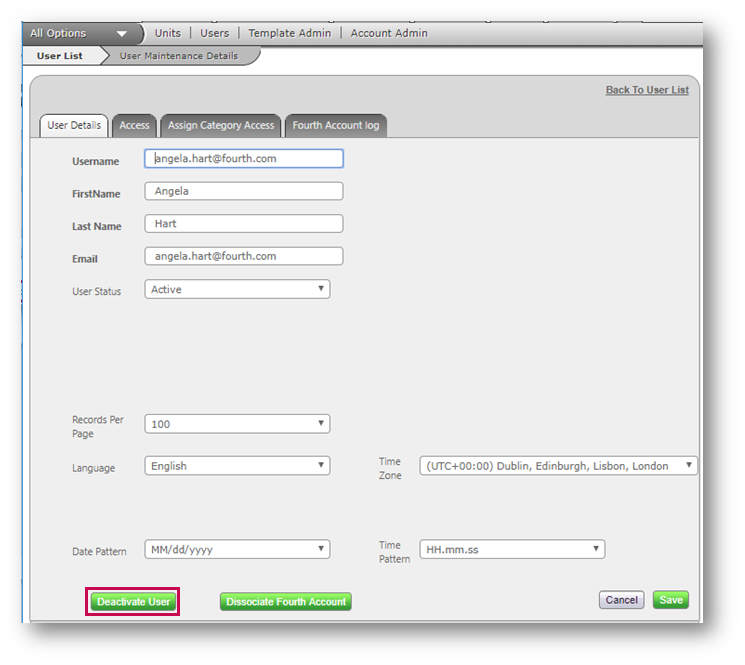
Fig.3 - User Details
The system will display a message to confirm that the user has been deactivated.
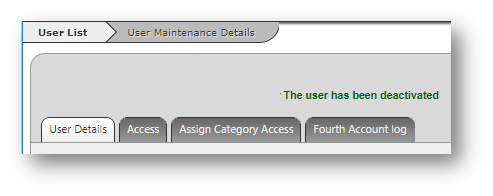
Fig.4 - User Deactivated Confirmation
The employee's status will change to Deactivated.
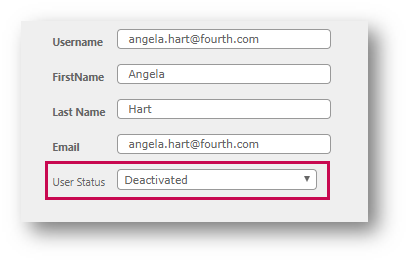
Fig.5 - Updated User Status
- To re-activate a user, select the Activate User button on the User Details page
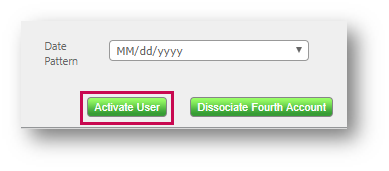
Fig.6 - Activate User Button
Comments
Please sign in to leave a comment.