
Transfers Report
The Transfers Report is used to see the details of transfers in/out for outlets, including totals.
- To run the Transfer Report go to Report Center > Requisition Reports > Transfers Report
- Double-click Transfers Report or select the report and click Run Report, to open the report criteria screen, as per Fig.1

Fig.1 - Running the Transfers Report
Report Criteria
-
Enter report criteria below to get desired results, as per Fig.2
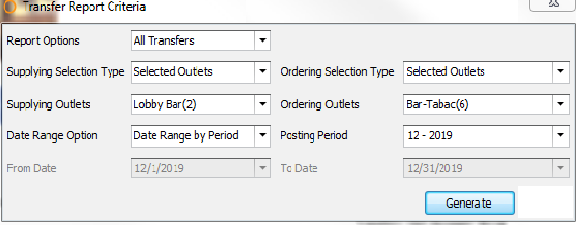
Fig.2 - Report Criteria for the Transfer Report
| Fields | Description |
|---|---|
| Report Options |
|
| Supplying Selection Type |
|
| Supplying Outlet | Select the Supplying Outlet(s) of the transfer. |
| Ordering Selection Type |
|
| Ordering Outlet | Select the Ordering Outlet(s) of the transfer. |
| Posting Period | When Date Range By Period option is selected the Posting Period field becomes active allowing selection of periods. |
| Date Range Options |
|
| From Date | When Select Start and End Dates is enabled, this drop-down field will allow a calendar date to be selected as the beginning date. |
| To Date | When Select Start and End Dates is enabled, this drop-down field will allow a calendar date to be selected as the ending date. |
Report Results
When the Transfer Report is generated, the result should look similar to Fig.3.
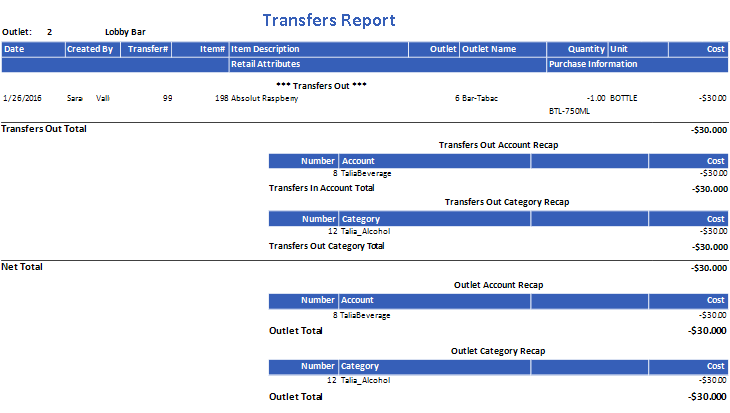

Fig.3 - Transfer Report results
If any transfers created by 'System' appear in the report, it will be due to the utilization of the Preparing Outlet functionality. See Purchasing & Inventory - Recipe Preparing Outlets and Prepared Quantities for further information.
| Title | Description |
|---|---|
| Outlet | Outlet Number and Name of the From outlet. |
| Date | The date the transfer was posted. |
| Created By | Displays the Full Name of the user who created the transfer. |
| Transfer # | The transfer number generated when the transfer was created. |
| Item # | The Adaco Product number. |
| Item Description | The name/description of the product entered under Property > Products. |
| Outlet | The Outlet number of the To outlet. |
| Outlet Name | Name of the To outlet. |
| Quantity | The line item quantity transferred. NOTE: "Transfers Out" quantities display in a negative quantity and "Transfers In", as a positive quantity. |
| Unit | The item unit size transferred. |
| Cost | The To Outlet's item cost. NOTE: Transfers out monetary value displays a negative value. |
| Retail Attribute | Displays additional characteristics defined for retail Retail Attributes for retail product under Property > Products > Retail button [If applicable]. |
| Purchase Information | Displays the purchase Information form the Property > Products > Purchase Info field. |
| Transfers Out - Transfers In | Section headers ***Transfers Out*** or ***Transfers In*** |
| Transfers Out Total | Displays the monetary sum of line items cost in a negative value.
|
| Transfers Out Account Recap |
|
| Transfers Out Account Total | Monetary grand total of the out accounts charged.
|
| Transfers Out Category Recap |
|
| Transfers Out Category Total | Monetary grand total of the out categories charged.
|
| Net Total | Monetary value of all transfers OUT. |
| Outlet Account Recap | Account Total by Outlet
|
| Outlet Total | Monetary value of the Outlet charges |
| Outlet Category Recap | Category Total by Outlet
|
| Outlet Total | Monetary value of the Outlet charges |
| Outlet | Number and Name of Transfers In outlet- Note: report breaks per Outlet if multiple chose per report criteria. |
| Transfers In Total | Displays the monetary sum of line items cost in a positive value.
|
| Transfers In Account Recap |
|
| Transfers In Category Recap |
|
Transfer In Account Total Transfers In Category Total |
Monetary grand total of the In accounts charged.
|
| Net Total | Monetary value of all transfers IN. Same as Account and Category Totals for the Outlet. |
| Outlet Account Recap | Account Total by Outlet
|
| Outlet Category Recap | Category Total by Outlet
|
Comments
Please sign in to leave a comment.