
Overview
This article first provides guidance on setting the required user permissions and then describes the process of rolling back a Tronc Period within the Tronc module.
For the process of rolling back a Tronc Period in the Tronc2 module, please follow the guidance in this article.
There may be instances when a Tronc Period is submitted in error, or changes need to be made to it after Tronc was submitted to Payroll. Tronc Periods can be rolled back and reopened so that changes can be made before resubmitting to Payroll.
Rolling back a Tronc Period should only be done as a last resort if it is not feasible to make changes to Tronc payments manually in the Payroll module.
A preview should be run before and after the rollback to ensure that the payments are taken out of Payroll
Permission Required to Roll Back Tronc - Access Level Hierarchy
For users who require this functionality, a permission needs to be assigned to the Access Level hierarchy (this is the recommended option, though it is also possible to assign access to individual users).
To do this:
- Go to HR > Company Admin > Access Level Hierarchy
Fig.1 – Access Level Hierarchy in the side menu
- Select the Company Hierarchy
Fig.2 – Selecting the Company Hierarchy
- Select the Access Level that the user(s) in question belong to
Fig.3 - Access Level within the Company Hierarchy
- Under the 'Tronc Module' section, select the required template from the drop-down and select Edit
Fig.4 – 'Edit' in the 'Tronc Module' section
- In the pop-up that appears, go to Administration and tick Delete Tronc Payments
- Select Save (and then Save again in the main browser window)
Please note: Updating the hierarchy will give the permission to all users on that Access Level
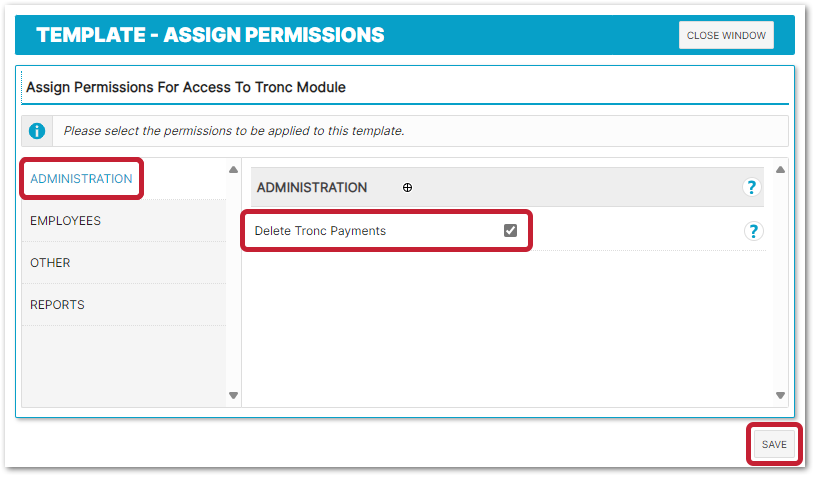
Fig.5 – 'Delete Tronc Payments' enabled
Alternatively, a single user can be given this permission.
To do so:
- From the side menu, go to Tronc > Users > Assign User Access
- Search for and select the required Employee and go to User Profile
- Tick Delete Tronc Payments
- Select Next and Next (again)
The permissions will then be saved for that user.
Rolling Back a Tronc Period in the Tronc Module
- From the side menu, go to Tronc > Administration > RollBack Tronc
Fig.6 – RollBack Tronc in the Administration Drop-Down
- Select the required Location and Tronc Period and then Rollback
Fig.7 – Location and Tronc Period Drop-Down Menus
- Confirm the rolling back of the Tronc Period by selecting OK
Fig.8 – Confirming the Rolling Back of the Tronc Period
Within Tronc, if the Rota(s) are also being rolled back within the Tronc Period or for the same Tronc Period, this must be done in the correct order. Please see below:
- Roll back the Tronc Period(s)
- Then roll back the Rota(s)
- Amend the Rota(s)
- Submit the Rota(s)
- Amend Tronc
- Submit Tronc
Comments
Please sign in to leave a comment.