
Overview
This article describes the process of creating a Job Title within the HR Module in Workforce Management.
Creating a Job Title
- Log into the HR module and select Job Titles in the Company Admin drop-down menu
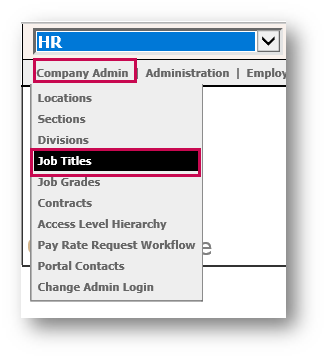
Fig.1 – Job Titles in Company Admin Drop-Down Menu
The Job Titles page displays any which have already been set up.
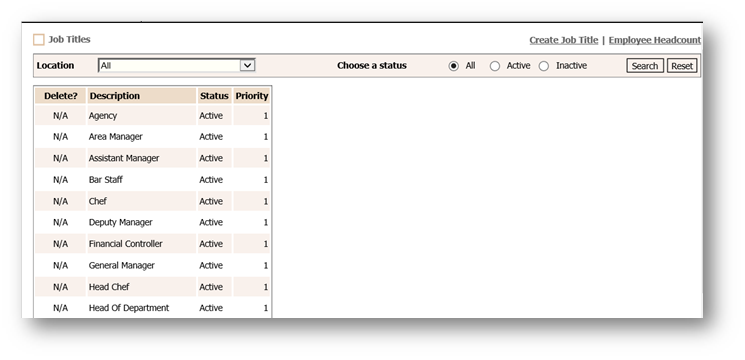
Fig.2 – Job Titles Set Up
- Select Create Job Title
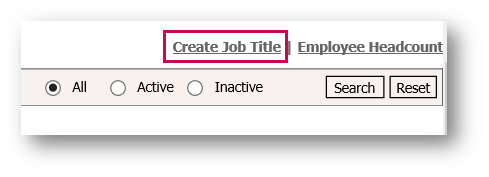
Fig.3 – Create Job Title
- Enter a Description for the Job Title
- The Priority is the order in which the Job Titles are displayed in on the Rota
- Select the Pay Method and Pay Rates applicable for an employee in this role
- All other options in this screen default to No
- Has agreed Headcount links to the Training module if being used
- Exclude from Wage Cost indicates that wages will not appear in Rota costs
- Use in recruitment module is only applicable if using the recruitment module
- Display Additional Payments sets this Job Title to always present if using additional payments
- Exclude from Tronc2/Tips indicates that this Job Title is never eligible for Service Charge payments
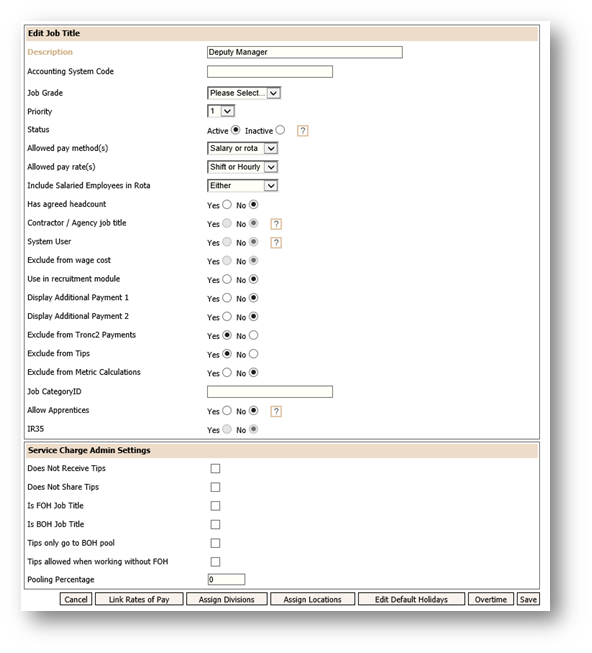
Fig.4 – Edit Job Title Page
- Select the Link Rates of Pay button at the bottom of the page
- Tick the Link rates of pay to job titles box
- Enter the relevant brackets of wages that an employee in this Job Title can be paid
- Save
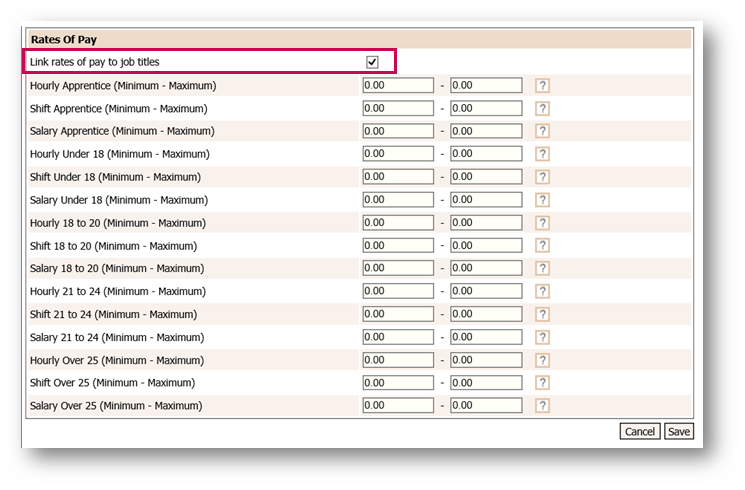
Fig.5 – Rates of Pay
- Select Assign Locations
- Use the centre arrows to assign over the relevant Locations for this Job Title
- Save
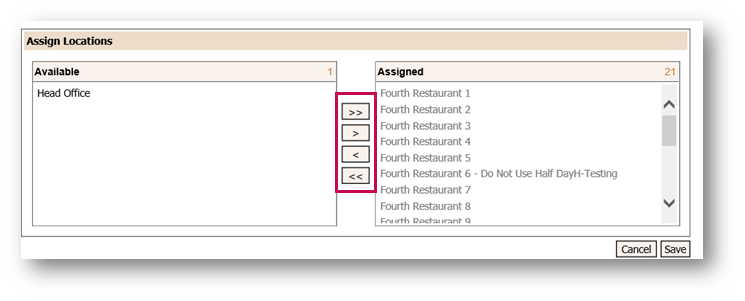
Fig.6 – Assigning Locations
- Select Assign Divisions
- Use the centre arrows to assign over the relevant Divisions for this Job Title
- Save
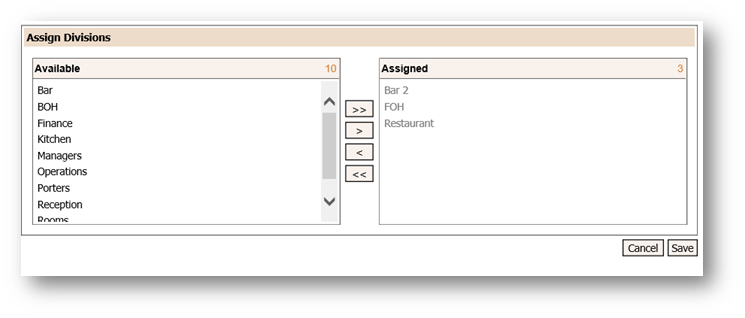
Fig.7 – Assigning Divisions
- Select Edit Default Holidays
- Select if employees in this Job title should be allowed to request Holiday that they have / haven’t accrued
- Enter the Full Time Equivalent e.g. if this employee is Full Time, enter how many hours/shifts and days they should be working, along with a Basic Holiday Allowance
- Select Add Yearly Increment if the employee is to receive additional Holiday after being with the Company for a certain number of years
- If the company uses flexible employees (where the system calculates the average number of days worked x the weeks allowed for their Holiday), enter the relevant weeks Holiday entitlement in Number of Weeks Holiday Allowed for Flexible Employees
- Enter a standard Holiday Pay Amount for Flexible Employees or a certain amount of Hours holiday Paid per Day for Flexible Employees
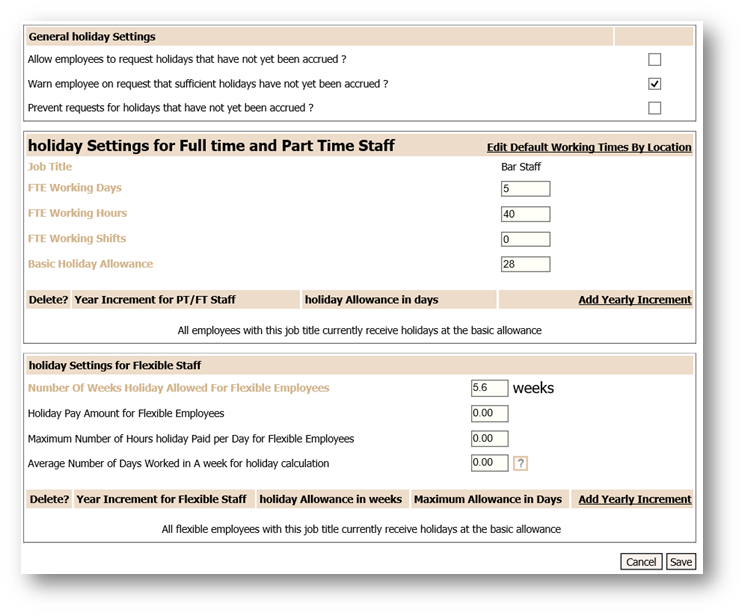
Fig.8 – Holiday Settings
- Select Save to confirm all changes and set up the Job Title
Comments
Please sign in to leave a comment.