
Overview
The Weekly Overview report is an Operational Report to compare forecasted rota costs with actual rota costs.
There are two ‘Weekly Overview’ reports ('V2' and 'V3') within the Rotas module of the People System. They are linked to the snapshot functionality and the rota approval process, meaning that when a rota is approved, the system will take a snapshot of the costs within the rota and pull them into the report for comparison with the actual rota costs.
The V3 report is an expansion of V2, offering more fields and data and is used by the majority of Fourth customers.
A customer can use one of the two versions, but not both as the correct Global Setting needs to be enabled.
Enabling the Weekly Overview Report
To enable the correct Weekly Overview Report, please get this switched on please speak to your Customer Success Manager, or the Customer Care Team.
Location Groupings
- Both the Weekly Overview reports can be run for all locations or a specific group of locations.
- These can be set up in HR Module > Administration > Global Settings > Edit User Defined Groups
Fig.1 - User Defined Groups Global Settings Location
- Tick User Defined Groups to be used
- Click Create a Group, enter a Description and Level, then click Save when ready.
Fig.2 - Creating User Defined Groups
- Types would then need to be associated with the created Group location created above. To do this, select View types next to the required group
Fig.2 - Creating User Defined Groups - Types
- Select Create a Type, enter a Description and click Save when ready.
- This creates the grouping (Region, for example, and the types will be the names of the different regions available seen within the drop-down, at location level)
- Go to HR Module > Company Admin > Locations > Select Location > Scroll down to find the "Group Location" container
- Make a selection for the different groups and the required types, and click Save
Fig.3 - Assigning User Defined Groups to a Location
- If required, create more than one grouping and there will be multiple groups available in the drop-down menus
Global Settings
- To enable the snapshot functionality, the correct Global Setting needs to be switched on. This can be found in Rotas > Global Settings
-
Tick the Allow creation of rota snapshots tick box to enable snapshot functionality, and then select the correct version of the functionality from the Select snapshot version drop-down box.
- For the Weekly Overview report Version two, select ‘Labour Extract’.
- For the Weekly Overview report Version three, select ‘Wage Function’
- A rota review workflow will also need to be created with the levels of approval. For example, General Manager and Ops Manager
Please note: If you change the snapshot version, the global setting ‘select snapshot version’ must be updated to the correct version.
Security Permissions
With each of the reports, once they have been enabled and set up, to allow the users to see the reports permission must be given in the Templates.
- These permission are found in Templates > Reports, tick the relevant permission based on the report version and save to allow access to the report
Weekly Overview Report v2
- The fields brought back in the report are shown as in Fig.4
- The fields Forecast Sales, Approved Labour Cost and Approved Labour Hours are from the snapshot taken when the rota is approved
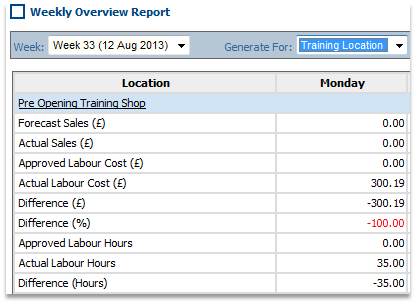
Fig 6 - Weekly Overview Report v2
Weekly Overview Report v3
- Rota Module > Reports > Weekly Overview Report V3
- The fields brought back in the report are shown as in Fig.7
- The fields Forecast Sales, Approved Labour Cost and Approved Labour Hours are from the snapshot taken when the rota is approved
Fig 7 - Weekly Overview Report v3
As of the 5th June 2025, there is a new option to export the report to either CSV, or XLSX in efforts to move away from the old file type of XLS. Once the Weekly Overview Report V3 has been run, select Export at the top right, not to be confused with Export to Excel (this is the old export method).
Fig 8 - Weekly Overview Report v3 Export Button
Two options will then be presented, either CSV or Excel. Selecting CSV will export the WORv3 to CSV, and selecting Excel will export the WORv3 to XLSX:
Fig 9 - Weekly Overview Report v3 Export options
The CSV export will look like this (Unformatted, due to it being CSV):
Fig 10 - Weekly Overview Report v3 CSV
The XLSX export will look like this (Formatted):
Fig 11 - Weekly Overview Report v3 XLSX
Snapshot Functionality
-
When the Snapshot Functionality is enabled, in the top right-hand corner of each rota, the Rota Status drop-down list can be seen. The purpose of each status is explained below:
- New: The status is given to a rota that is still in progress
- Ready For Review: The status managers can set the rota to indicate that it is ready to be reviewed by, for example, an ops manager
- Approved: Setting this status, typically the role of the Ops Manager, takes the snapshot of the forecasted rota its associated costs. This information is retained and used to populate the Weekly Overview reports.
- Declined: Typically selected if, for example, an ops manager does not agree with the labour costs. This rota would then be amended by the manager and then set to Ready for Review again
Fig,12 - Rota Status Drop-down List
Comments
Will this be accessed via a new portal/webpage? If so what is the URL so this can be whitelisted pre launch
Good afternoon Joshua,
Thanks for your comment and I hope you are well.
This would be accessible via your normal people system portal however, you would need to contact your Customer Success Manager or the Customer Care Team in order for the functionality to be switched on.
Thank you and I hope this helps!
Please sign in to leave a comment.