
You can reset your schooX password in 4 simple steps:
Step 1:
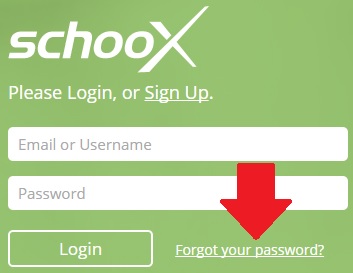
Follow the Forgot your password? link which is directly under the login area of the login page.
Step 2:
In the next page please give your email of your account (i.e. the email you used to signup on schooX).
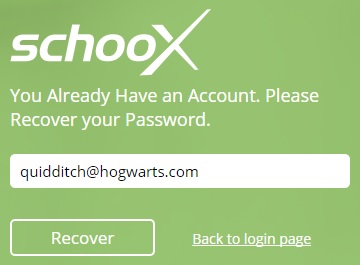
After giving your email and selecting Recover, you will see a page notifying you that you will receive an email to confirm that you want to change your password. It will contain further instructions.
Step 3:
You will receive a confirmation email asking you to confirm that you have asked to change your password. This is necessary to prevent others from trying to change your password by using your email.
Follow the link in the confirmation mail to confirm that you want to change your password.
Step 4:
Once you have confirmed the change of your password (just by following the link in the first email you got) you will get another email that has a temporary password.
You can now use this temporary password to login to schooX. During your first login with your temporary password you will be asked whether you want to change this password and set a new one that you can remember easier. You can keep this password if you want.
To do so give again your temporary password in the first field and the desired new password in the next fields.
You can also access the link below:


Download Our App
Comments